Browse Class Schedule (for Faculty and Department Heads)
Browse Class Schedule allows multiple ways to search for class sections offered in a given semester. After selecting a term, you can enter your search criteria in the fields provided or click the Advanced Search link.
To browse classes, you will be prompted to select a term. You’ll then see several fields in which to enter your search criteria.
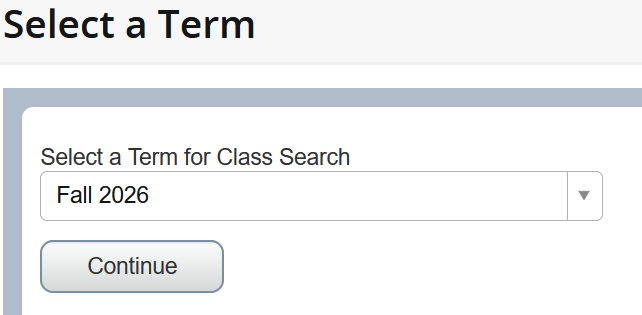
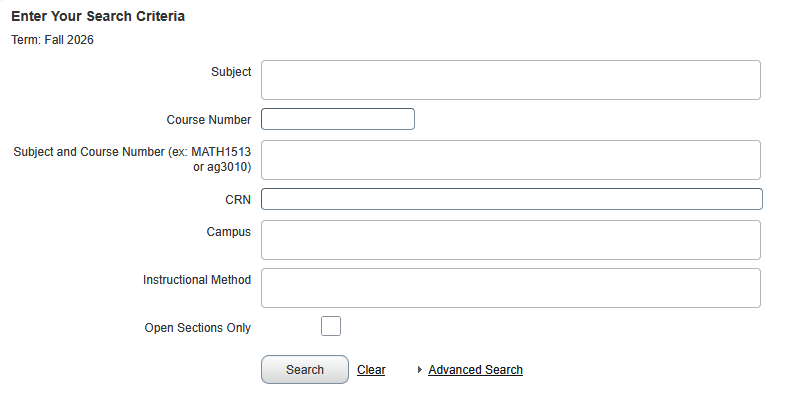
No field is required (hitting search with all blank fields will return all sections for the selected term). To see the available list of values for a search field, click in that field and the options will display below. Click on one or more options to include them in your search criteria. To narrow down the values that display, start typing the description, then select the desired option from the smaller list that appears. The % wildcard character can be used in the Course Number field. Click the Clear link at the bottom to clear out all previous search criteria and start fresh with a new search.
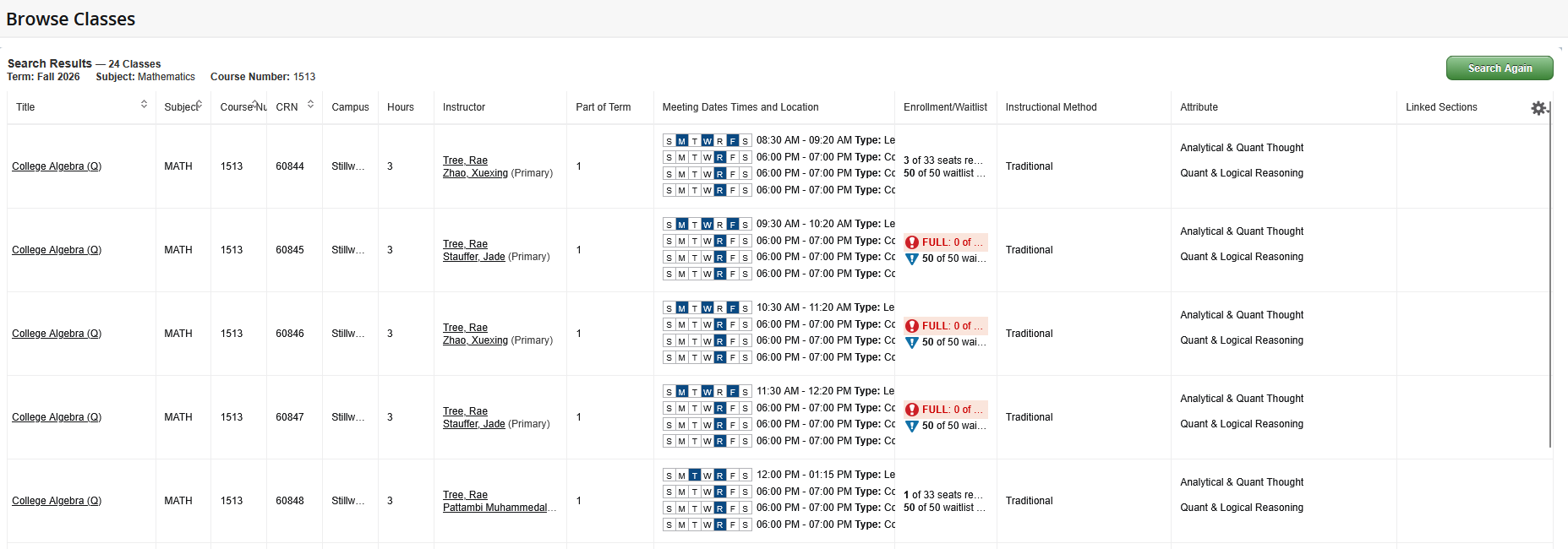
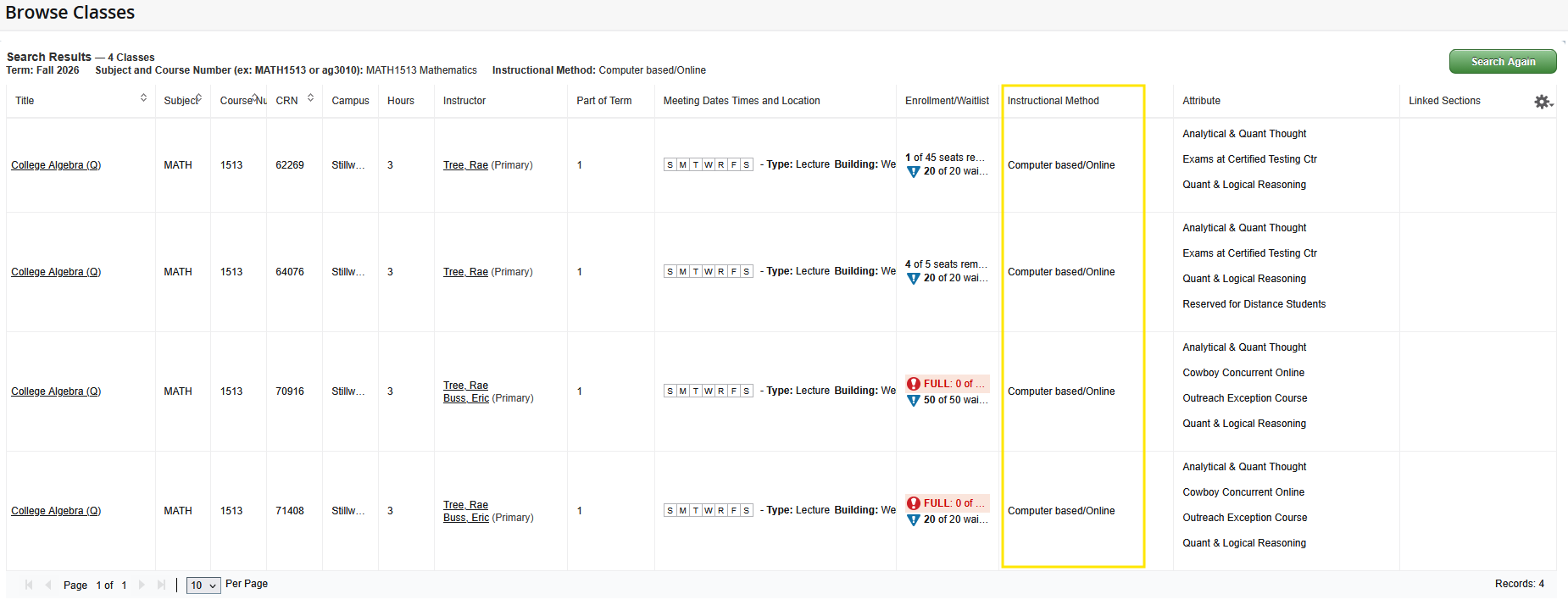
Once your criteria is entered and the Search has been clicked, the search results will display in a list format like the image below:

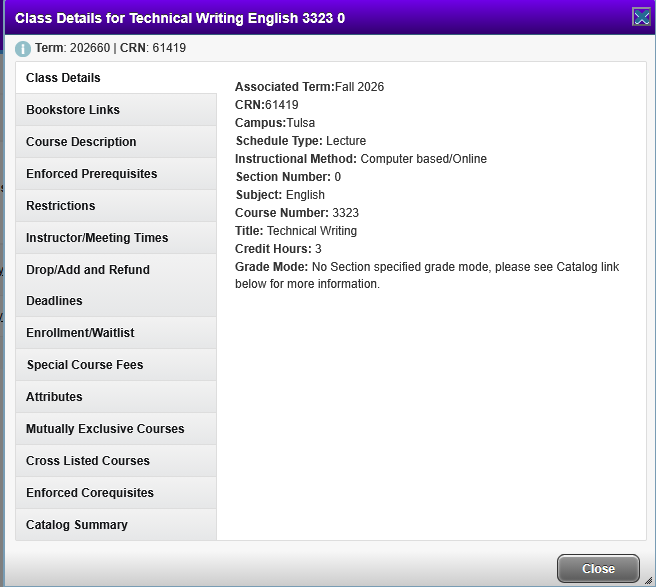
If you hover over something that is shortened or cut off, a pop-up box will appear that shows all the details. Clicking on a class title will display the full class details, including the catalog course description, textbook information, enforced prerequisites and other registration restrictions, drop/add and refund deadlines, and special class fees:
Click the green Search Again button in the upper right corner to return to the search criteria.
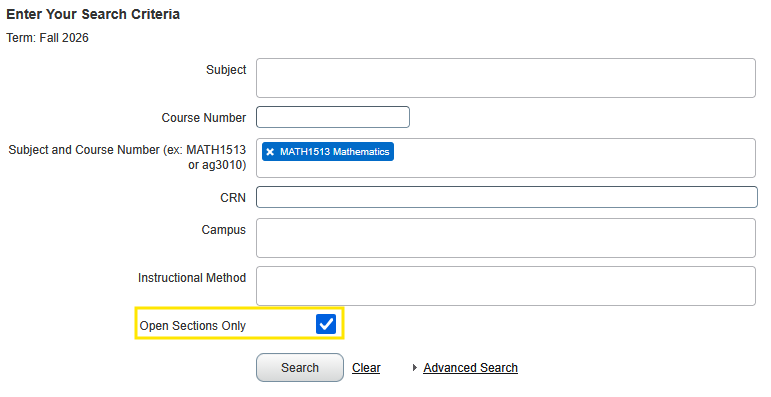
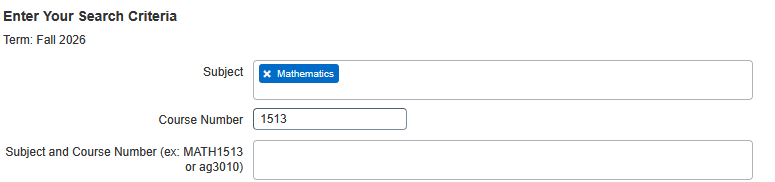
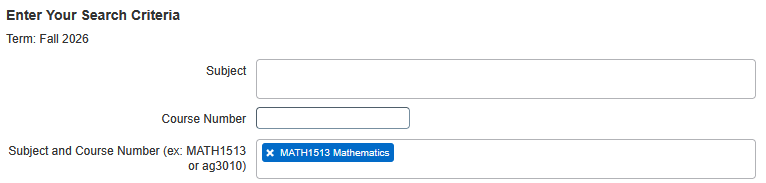
Adding multiple search field will connect those options with an “and” when applying your search criteria. For example, entering Mathematics into Subject and 1513 into Course Number will display all MATH 1513 sections for the selected term (yielding the same results as entering MATH1513 into Subject and Course Number).
Adding multiple options in a single search field will connect those options with an “or” when applying your search criteria. For example, entering Agriculture and Arts & Sciences into Subject and 3090 into Course Number will display all AG and A&S classes with the course number 3090.


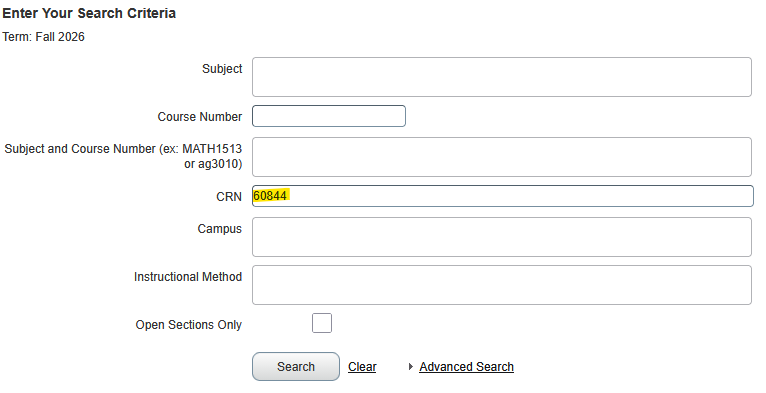
Searching by CRN (a five-digit Course Reference Number) allows you to find a specific section. For example, instead of searching for all MATH 1513 classes, you can use a CRN (if known) to search for that specific class:

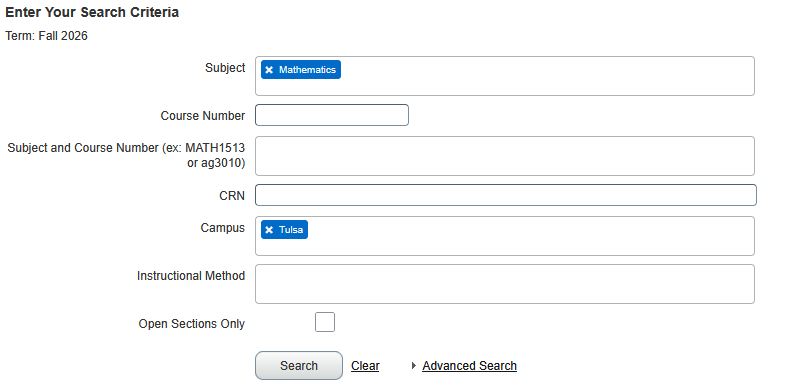
The Campus field allows you to filter your results based on the campus with which the classes are associated. For example, you can use it to find all MATH classes that are located on the Tulsa campus for the selected term.

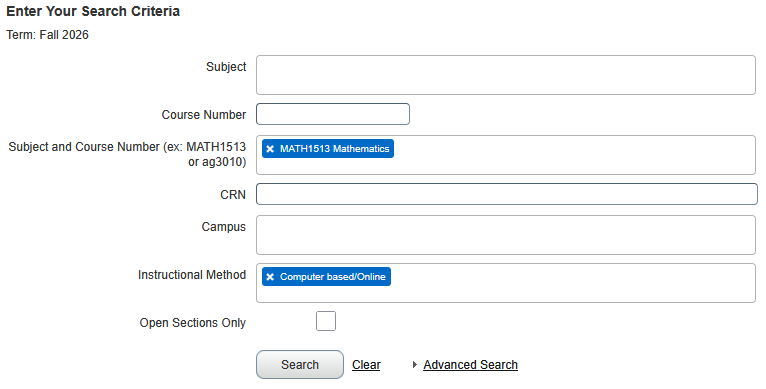
The Instructional Method field allows you to filter your results by specifying the format in which the course is taught. For example, you can use it to find online sections of MATH 1513.
To see only classes that still have room for enrollment, select the Open Sections Only box before executing your search (note that this will include full classes that still have waitlist spots available).