Update Email Addresses
Choose which type of email address you want to update:
- Add a new parent or guardian email address
- Update an existing parent or guardian email address
- Change my OSU or alternate email address (via O-Key)
Add a new parent or guardian email address
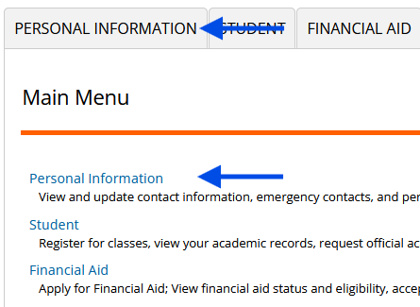
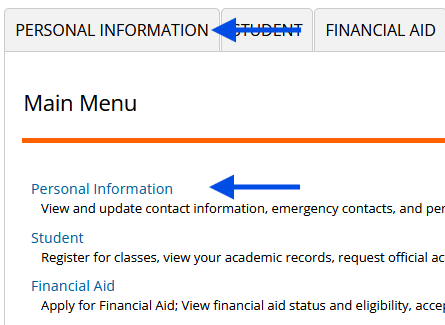
From Self-Service, select the Personal Information menu (either the tab or the link will work):
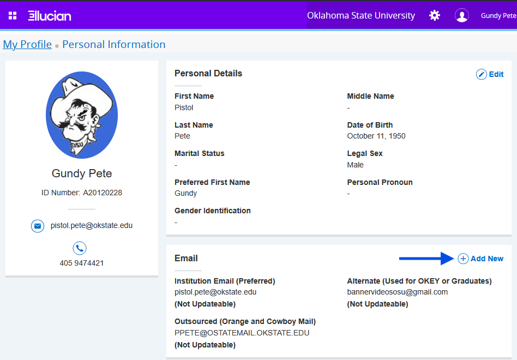
In the Email section, select Add New on the far right of the page:
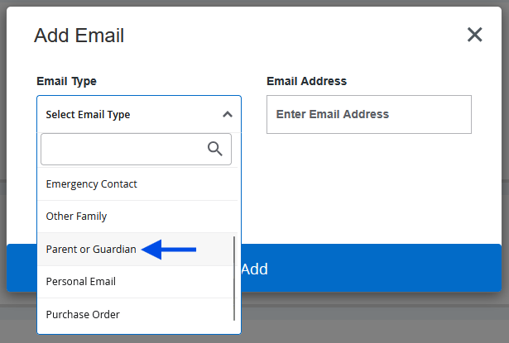
Under Email Type, click Select Email Type to pull up a drop-down list and select “Parent or Guardian”:
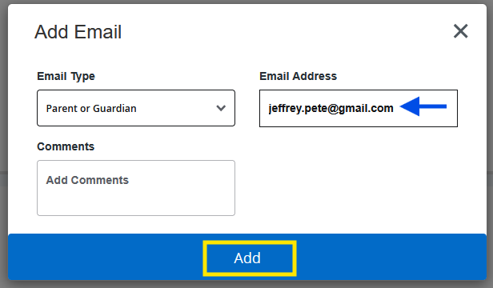
Type the email address in the Email Address field, then click Add:
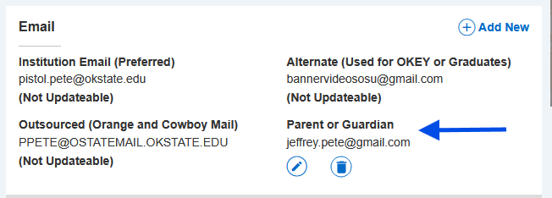
The new parent/guardian email address now displays in your list:
Update an existing parent or guardian email address
From Self-Service, select the Personal Information menu (either the tab or the link will work):
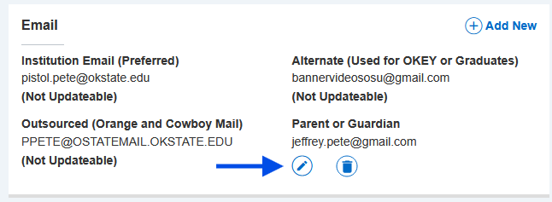
In the Email section, click the Edit button under the email address to be edited:
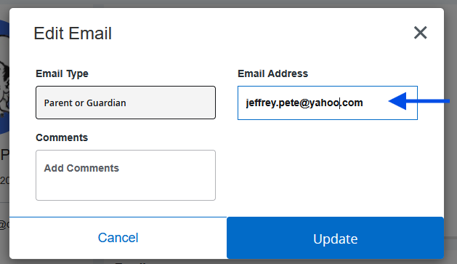
Enter the new email address in the Email Address field, then click Update:
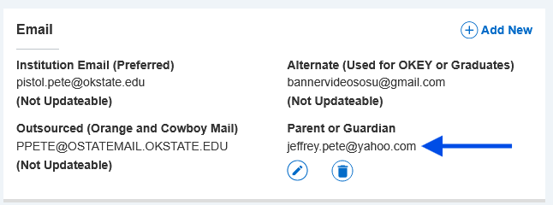
The updated email address now displays in your list:
Change my OSU or alternate email address (via O-Key)
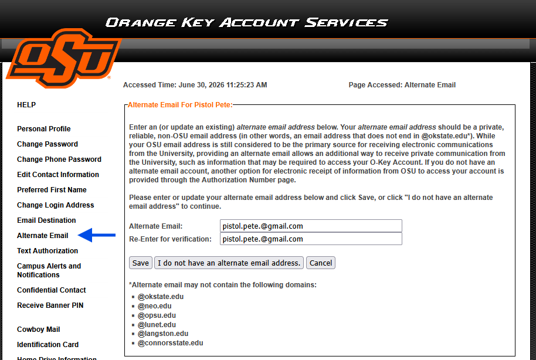
Your OSU email and alternate email addresses can be updated via your Orange Key (or O-Key) account, and not from Self-Service. Login to okey.okstate.edu and select the following menu items:
If it’s your first time accessing this site:
- Scroll to the bottom of the first page (this displays Authorization to Receive Text Messages and Authorization for Emergency Contact) and click Next.
- The next page displays Campus Alert Information for you. At the bottom, click Done.
- Enter your Emergency Contact Information if desired and click Save.
To change your OSU email address, select Change Login Address. Select a new OSU email address from the options provided and click Save.
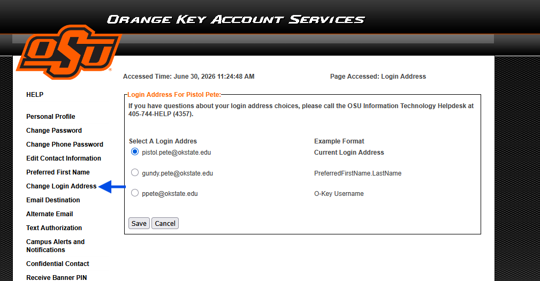
To change your alternate email address, select Alternate Email. Enter (and re-enter) your new alternate email address and click Save.