Coursedog Meetings & Locations
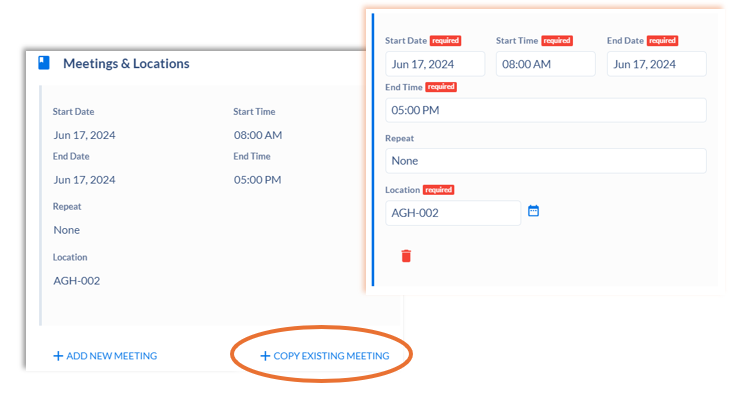
Use the Meetings & Locations card within the event request form to designate the time, date and location of your event.
Non-reoccurring events will have the same start and end date, and the Repeat field will remain blank (default “None”). Location selection will be based on the capacity of your event and room availability for the date selected.
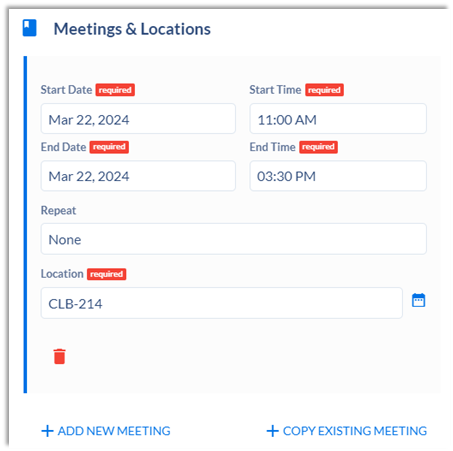
Reoccurring events can be scheduled daily or weekly.
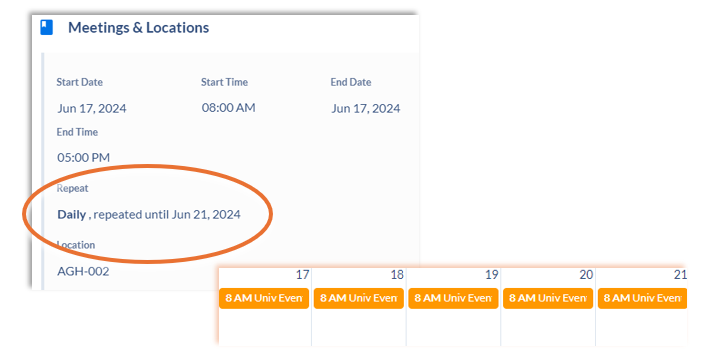
Repeating events with the same start/end date will reserve the room for the designated start/end time daily or weekly until the end date is reached.
| Example | |||
|---|---|---|---|
| June 17 - 8am to 5pm | June 18 - 8am to 5pm | June 19 - 8am to 5pm | |
| June 20 - 8am to 5pm | June 21 - 8am to 9pm |
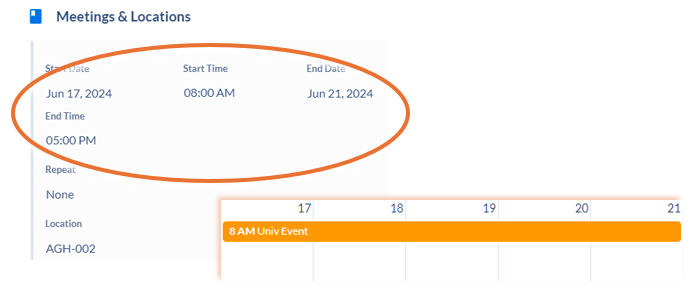
Repeating events with a different start/end date will reserve the room for a continuous period of time during the specified repeat window.
| Example | ||
|---|---|---|
| June 17 - 8am to June 21 5pm |
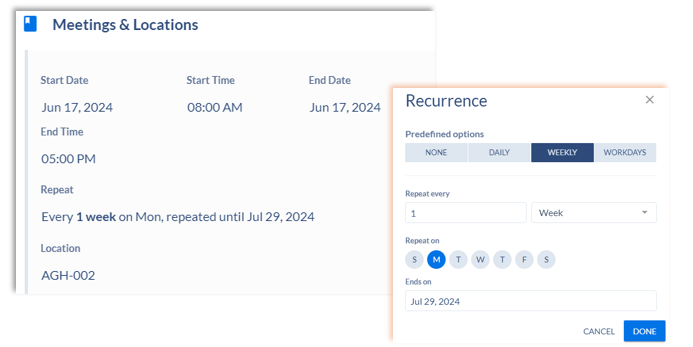
Reoccurring weekly events can be scheduled for single or multiple days of the week. A recurrence end date is required to successfully save the event.
| Example | |||
|---|---|---|---|
| June 17 - 8am to 5pm | June 24 - 8am to 5pm | July 1 - 8am to 5pm | |
| July 8 - 8am to 5pm | July 15 - 8am to 5pm | July 22 - 8am to 5pm | |
| July 29 - 8am to 5pm |
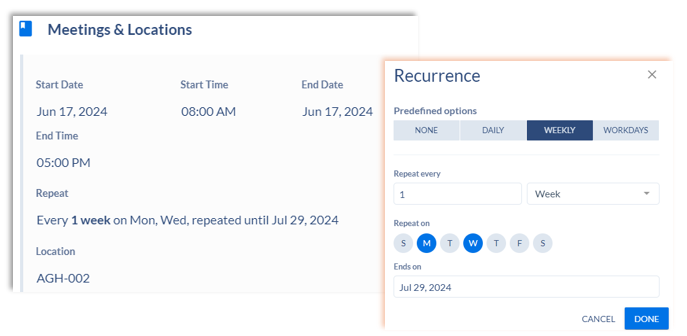
| Example | |||
|---|---|---|---|
| June 17 & 19 - 8am to 5pm | June 24 & 26 - 8am to 5pm | July 1 & 3 - 8am to 5pm | |
| July 8 & 10 - 8am to 5pm | July 15 & 17 - 8am to 5pm | July 22 & 24 - 8am to 5pm | |
| July 29 - 8am to 5pm |
Additional meeting days/times may be added by using the +Add New Meeting or +Copy Existing Meeting settings at the bottom of the Meetings & Locations card.
Adding a new meeting will create an additional blank card where subsequent meeting and location details can be added to the event.
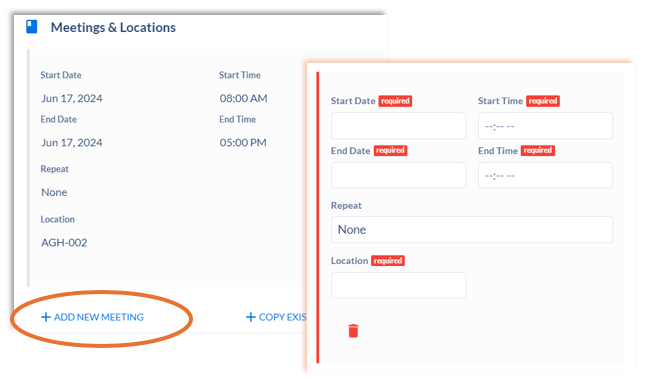
Copying an existing meeting pattern will create a duplicate card for ease in scheduling. This feature can assist with creating large events in multiple rooms by copying the meeting pattern and changing the location of each card. It can also assist with events that may meet multiple times at the same day/time and location where only the start and end date will need modified for each card.