Degree Works FAQs for Students
- What is Degree Works?
- How do I use Degree Works?
- What do the green, blue, and red circles in my audit mean?
- How do I determine what courses I will need to take?
- Am I able to register through Degree Works?
- The @ symbol is listed in several places of my audit. What does it mean?
- Why are there different GPA calculations within my audit?
- What is the Fallthrough section?
- What is the Insufficient section?
- What courses are found in the Not Counted block?
- Why is a course that I believe should be counting toward my degree found in Fallthrough? Does this mean it does not count?
- If a checkmark next to a requirement means it is complete and all requirements are checked, does this mean I am graduating?
- How can I view how my credits will apply to another degree program?
- How do I view my second degree, second major or minor progress in Degree Works?
- Is there a way to view all of the courses I have completed in Degree Works?
- What happens if Degree Works has listed one of my courses in two different areas of my audit?
- How do I use the GPA Estimator tool?
- How can I print my audit?
- The top block in the audit shows a message about “MATX or LEVL attributes”. What does this mean?
Degree Works is a degree audit tool designed to assist you in providing an overview of what degree requirements remain and how your coursework applies to your currently declared degree program. Your Degree Works audit is only a tool and not an official transcript. Students should work with their academic advisor to verify the information in their audit, develop an understanding of program requirements, discuss course registration, and verify final official degree clearance at the time of graduation.
When you first log in to Degree Works, you will find your student information and currently declared degree program. You will then find your degree requirements listed in various blocks (e.g. university, general education, major, college/departmental, etc.). These blocks serve as useful tools to monitor your course completion as well as minimum and overall GPA requirements associated with your degree program. If at any time, you have questions concerning your audit, please consult your academic advisor.
What do the green, blue, and red circles in my audit mean?
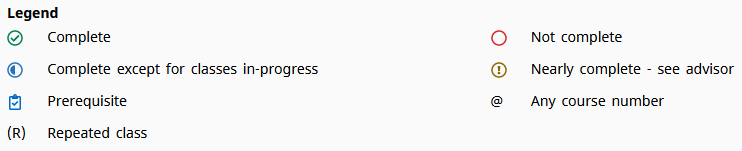
A green circle with a checkmark next to a requirement indicates that the requirement is complete. A half-filled blue circle next to a requirement indicates that the requirement will be complete upon successful completion of in-progress courses. Your audit will assume successful completion of these courses and reflect these credit hours in credit totals. However, if these courses are not successfully completed they will be removed once the semester has ended. A red circle next to a requirement indicates that the requirement is not yet fulfilled. Please note that changing your major will require a new audit. Courses once listed as complete (indicated by green circles) may not always meet requirements for another program. A legend can be found at the bottom of the audit as a reminder:
How do I determine what courses I will need to take?
Degree Works will place a red circle next to an incomplete requirement:

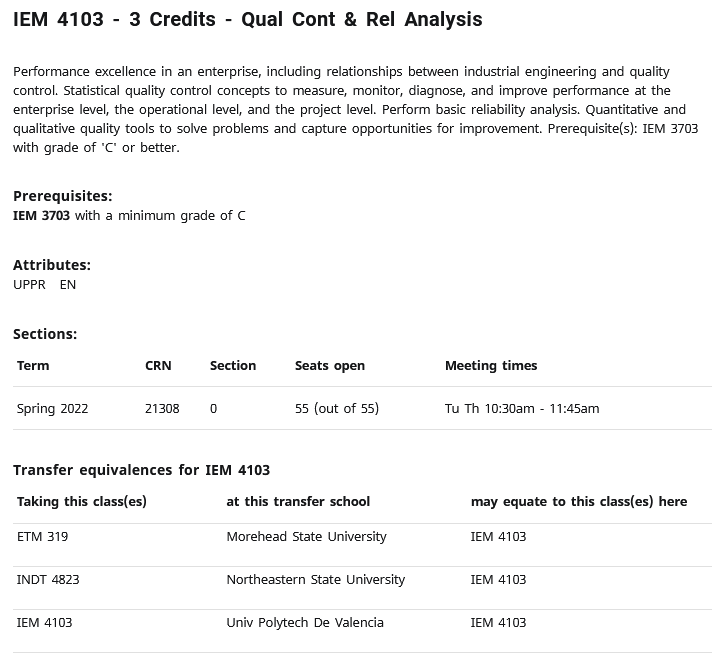
You can then click on the hyperlink(s) to find out more about the required course or to generate a list of those courses that will apply. The course description, any required prerequisites, upcoming section offerings, and transfer equivalences will be displayed in a new window like the one below:
Always verify with your academic advisor before registering to ensure degree applicability and confirm prerequisites have been met.
Am I able to register through Degree Works?
While registration doesn’t take place within Degree Works, you are able to click on hyperlinked courses listed in your remaining requirements to view class options, meeting times, CRNs for each section and available seat capacity in real-time.
The @ symbol is listed in several places of my audit. What does it mean?
This symbol allows the audit to recognize any course within the parameters provided. For example, if you see 6 credit hours of POLS @; this means any two POLS courses will meet the specified requirement. If you see 3 credit hours in SOC 3@ or 4@, this means any 3000-4000 level SOC course will meet the specified requirement. Clicking the hyperlink will populate a list of available course options to meet the requirement.
Why are there different GPA calculations within my audit?
All degree programs have an overall GPA requirement reflected at the top of your audit. Many programs also have major, college/departmental and/or professional GPA requirements. Degree Works assists in allowing you to monitor the GPA in many of these areas so you can evaluate your progress.
What is the Fallthrough section?
Fallthrough includes all courses not currently used to fulfill specific degree requirements. However, the grades and credit hours will factor into your overall GPA and total credit hours earned.
What is the Insufficient section?
Insufficient courses are those with grades that fall below the minimum grade requirements for the currently listed degree/major. These may include courses with a grade of W or F, or repeated, reprieved or renewed courses which are excluded from earned credit hours and grade-point averages. Incomplete courses will also reside in this section until a final or default grade is assigned.
What courses are found in the Not Counted block?
These courses cannot be used to meet degree requirements per State Regents’ and OSU policy. Courses in this category include performance/activity (leisure) and developmental courses. These courses are not calculated in hours earned and they are not included in GPA calculations for the completion of this degree. Study abroad coursework that is in-progress will also reside in this section until the completed coursework is evaluated and added to your transcript.
Some programs exclude courses with a passing grade below a required minimum grade from the audit entirely. The course being repeated will be in Not Counted and the in-progress/preregistered course will be in Insufficient until it is graded. Degree Works will then place the courses according to the repeat markers added to the transcript during grading.
Why is a course that I believe should be counting toward my degree found in Fallthrough? Does this mean it does not count?
There are several reasons a course may be found in Fallthrough. First, it is important to make sure your currently declared degree program is accurate. If the wrong program or catalog year is listed, please consult your academic advisor as this will not accurately reflect your completed coursework. Transfer coursework and course substitutions must be evaluated and may take longer to reflect accurately within your audit. Always consult your academic advisor with questions concerning completed coursework and degree applicability.
If a checkmark next to a requirement means it is complete and all requirements are checked, does this mean I am graduating?
No, this is not necessarily an indication of graduation. First, you should meet with your academic advisor to confirm all requirements have been met. A graduation application must also be filed via self-service within the specified university deadlines. See Apply to Graduate for additional details.
How can I view how my credits will apply to another degree program?
The “what-if” feature in Degree Works will allow you to select another degree program to view how your credits may apply. Please note, this is not an official audit. Only an academic advisor can assist with determining how your coursework may apply to a certain degree program.
How do I view my second degree, second major or minor progress in Degree Works?
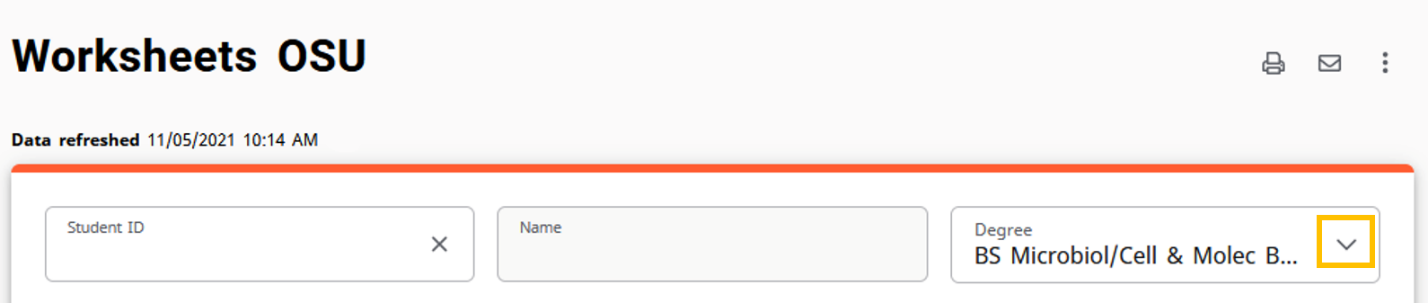
If you are pursuing a second degree, and it is currently declared, you can click the “Degree” down arrow at the top of the page to view your second degree.
Minors will simply display at the very bottom of your audit. At this time, second majors should not be considered a part of your audit in Degree Works. Please consult your academic advisor for progress related to these requirements.
Is there a way to view all of the courses I have completed in Degree Works?
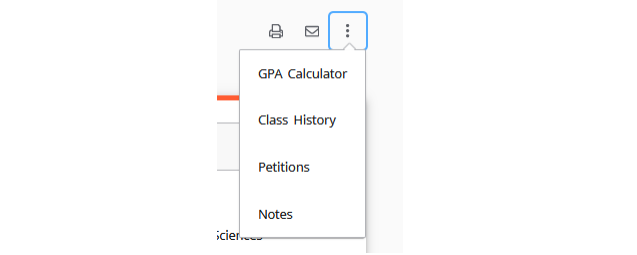
Yes, if you click on the vertical ellipses (three dots) in the upper-right hand corner of the audit and select “Class History”, you will see a chronological list of courses from your transcript within the terms they were completed. Please note, this is not an official transcript and may not reflect the OSU repeat policy or other aspects of your official transcript.
What happens if Degree Works has listed one of my courses in two different areas of my audit?
In many instances, this is okay. Degree Works recognizes that a course may fulfill more than one requirement within a degree program. Always bring this to the attention of your advisor to confirm your audit. Please note that while a course may meet more than one degree requirement, it will only be reflected one time in your earned/total credit hours.
How do I use the GPA Estimator tool?
The GPA Estimator tool has three functionalities: a Graduation Estimator, a Term Estimator, and an Advice Estimator.
The Graduation Estimator gives the GPA needed across the remaining credits required for the degree to reach a desired total GPA. This tool populates the first three fields automatically: the current GPA, the number of credits still needed to complete the degree, and the total credits required by the degree. Entering the desired GPA and clicking Estimate will provide how many credits at certain grades are needed to achieve that GPA.
In the example below, the student currently has a GPA of 2.793, is in a degree that requires 120 credits, and still has 24 credits left until they complete their degree (note that this does not include credits from courses in Fall Through).
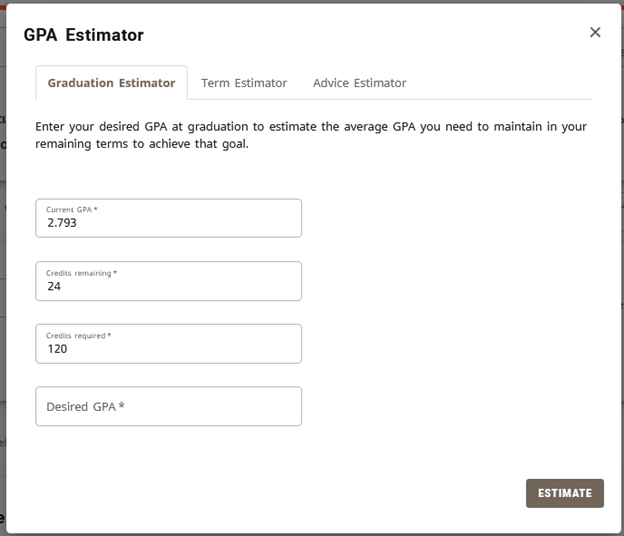
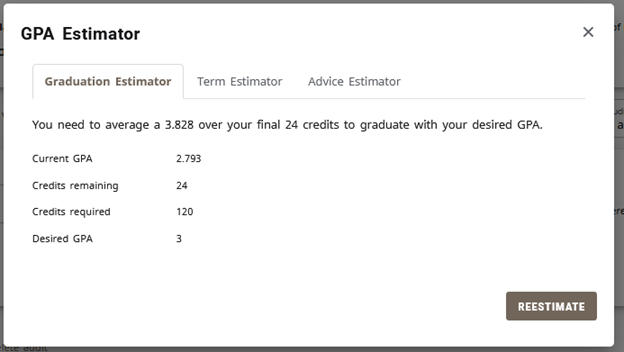
If a total GPA of 3.0 is desired, typing 3 into the Desired GPA field and clicking Estimate will provide the GPA needed over the remaining credits to reach the desired GPA.
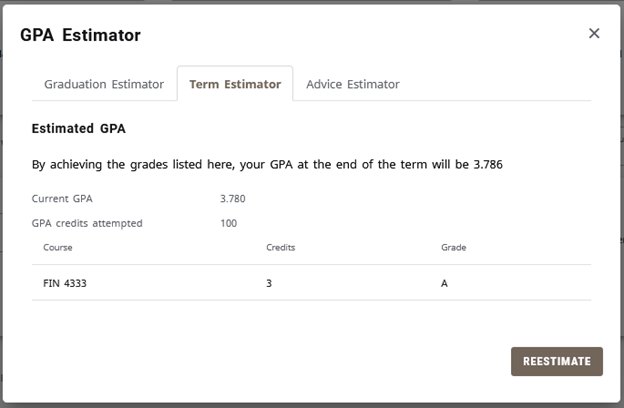
The Term Estimator can be used to see what the student’s GPA will be after the current semester is graded. All fields will automatically be filled, including the student’s current GPA, the credits they’ve completed so far, and the courses they are currently enrolled in. These courses will automatically have their grades set to A. In the example below, the student has a GPA of 3.780 from the 100 credits they’ve earned so far. They are enrolled in the 3 credit course FIN 4333, and the Estimator has automatically assigned an A in the course. After clicking Estimate, we see that their GPA will raise to 3.786 if they earn an A in that course.
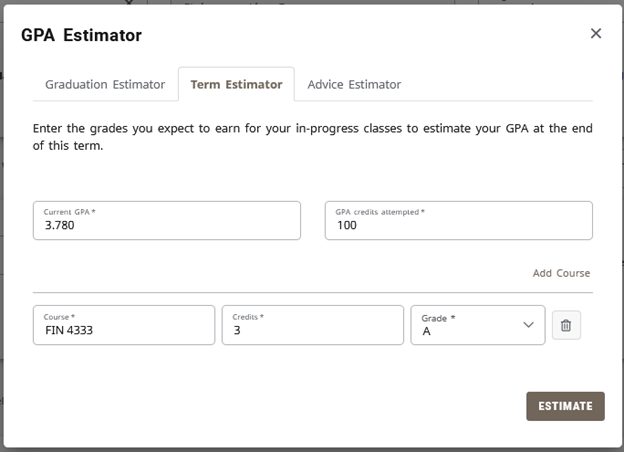
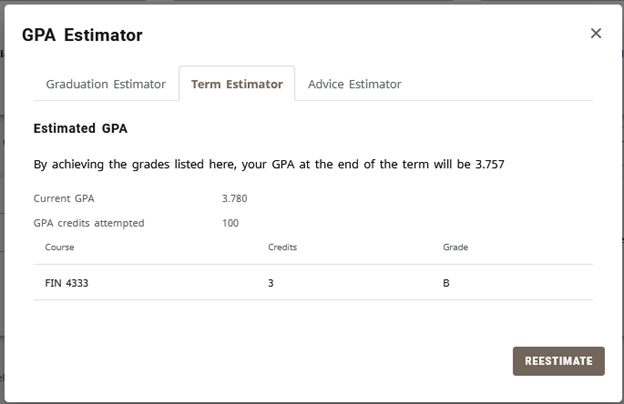
The grade can be changed based on what the student expects to earn in that course. For example, if the student thinks they’ll earn a B in FIN 4333, their GPA will be lowered to 3.757.
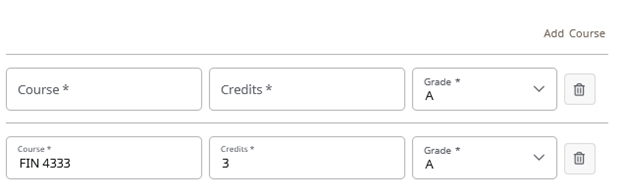
If the student plans on enrolling in additional courses for the current semester, they can select “Add Course” and enter the course information including their expected grade in that course.
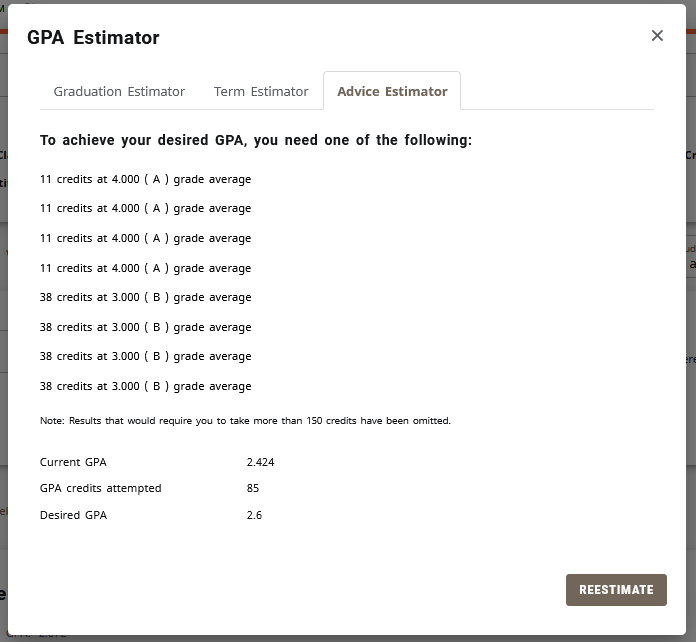
The Advice Estimator can be used to see how many credits are needed to get to a certain GPA (it differs from the Graduation Estimator in that it doesn’t limit itself to only the credits needed by the degree). The student’s current GPA and the credits they’ve completed so far are automatically populated. Entering the desired GPA and clicking Estimate will provide how many credits at certain grades are needed to achieve that GPA.
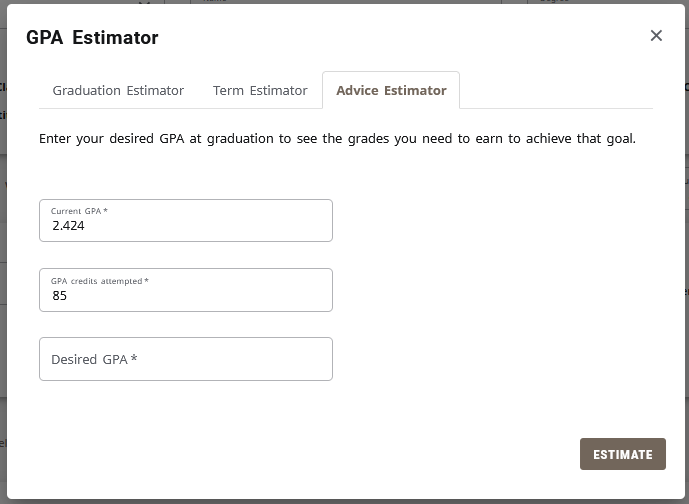
For example, the student in the screenshot above and below has a current GPA of 2.424 and 85 earned credits so far. If a desired GPA of 2.6 is input, the estimator shows that 11 credits with grades of A or 38 credits that average a grade of B are needed.
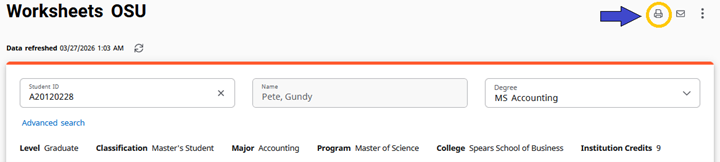
While in DegreeWorks, click the printer icon in the upper-right hand corner of the page:
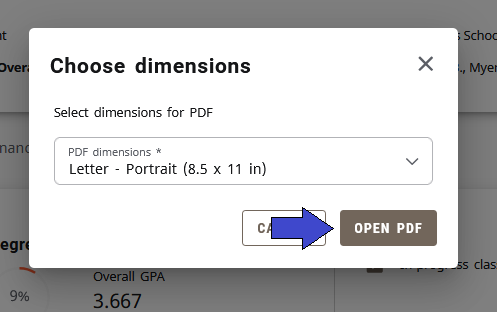
Then choose the dimensions of the audit and click the “OPEN PDF” button:
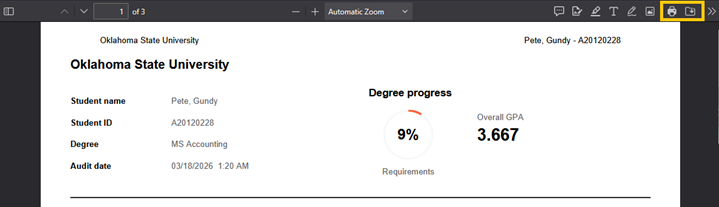
A new tab will open where you can preview the audit. Use the browser-specific tools pictured below to either print your audit or save it.
Mozilla Firefox
Apple Safari
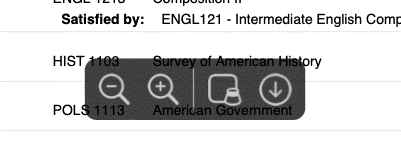
Google Chrome
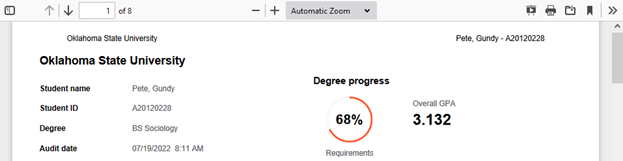
Microsoft Edge
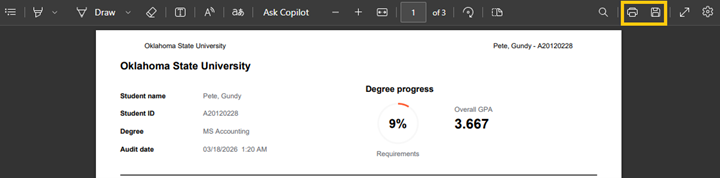
Note that in Chrome or Edge, you’ll need to specify the file type you want before you download it directly.
The top block in the audit shows a message about “MATX or LEVL attributes”. What does this mean?
The Degree block might have the following message above the list of other blocks in the audit:
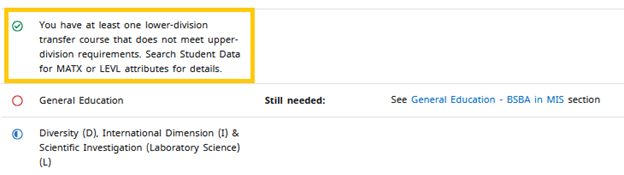
When this message is present, the audit contains a transfer course that has been articulated at the 3000 or 4000 level but does not meet upper-division requirements. Instead of carrying the UPPR attribute, it carries either the MATX or LEVL attribute. There are a couple of ways to identify which course this is.
As the message states, you can use the Student Data to find this course. Above the degree block, select the Student data link.
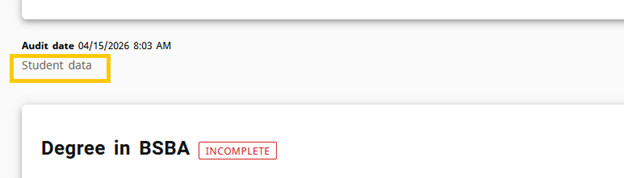
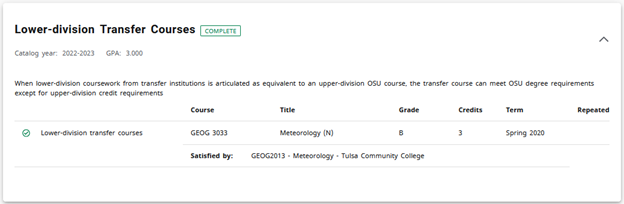
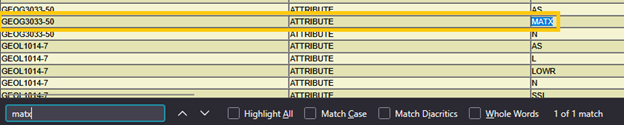
This will open the Student Data Report in a new tab. Press crtl+f and search first for MATX and then for LEVL. These searches will find that attribute listed next to its associated course. In the example below, GEOG 3033 is 3000 level but carries the MATX attribute instead of UPPR, meaning that the course is not considered upper-division.
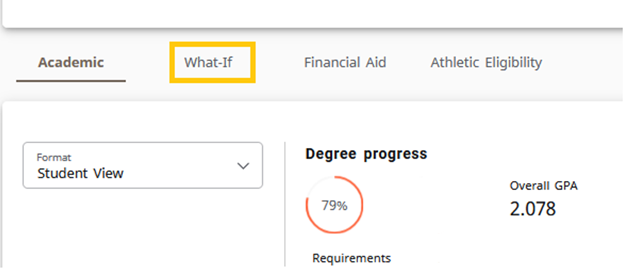
You can also run a What-If audit against the University Requirements to identify the course. Navigate to the What-If tab.
Select your Catalog year, then select “University Requirements” as the Degree. Ensure that the Level is “Undergraduate” and then click the Process button.
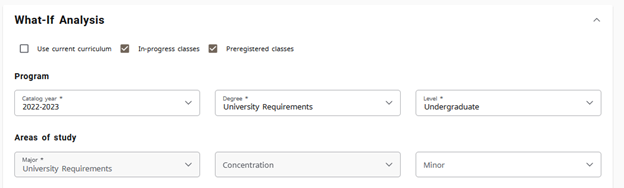
In this audit, scroll down to the “Lower-division Transfer Courses” block to see the course carrying the MATX/LEVL attribute.