

What's New with Degree Works
- Diversity (D)/Global Cultural Competency (G)
- Lower-Division Transfer Courses
- Class History & GPA Estimator
- What-If & Look Ahead
- Graduation Application Requirement
Diversity (D)/Global Cultural Competency (G)
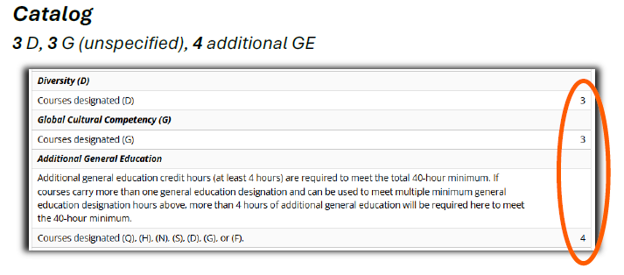
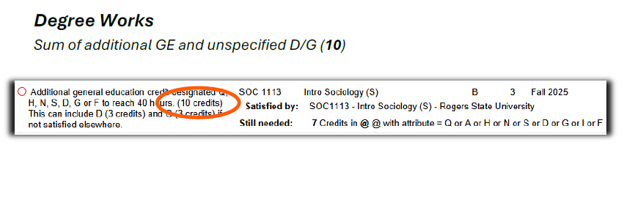
Beginning with the 2026-2027 catalog year, Additional General Education (GE) requirements are increased by the number of unspecified Diversity (D)/Global Cultural Competency (G) general education requirements in all Degree Works audits for greater flexibility and reduced exceptions:
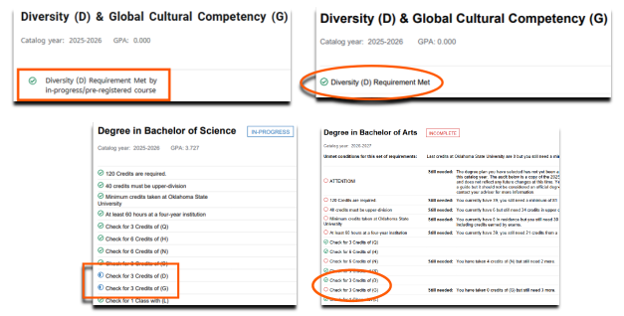
The audit will also check the transcript for credits of D/G. In-progress/preregistered courses are recognized, and consistent reporting markers are maintained:
Lower-Division Transfer Work
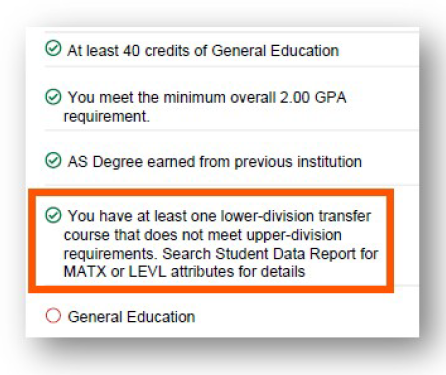
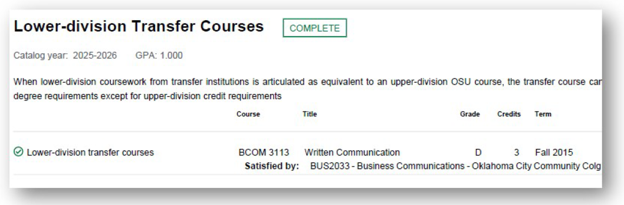
Some lower-division (LD) transfer courses articulate as 3000/4000 without upper-division (UD) credit. These are tracked with attributes in Banner and Degree Works will display a warning when any are present:
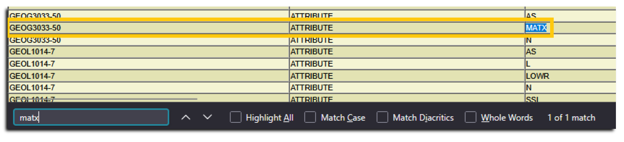
- MATX identifies 2-year courses equivalent in content to UD OSU courses in the OSRHE Course Equivalency Project (CEP)
- LEVL identifies non-CEP LD transfer work from 4-year schools equivalent in content to UD OSU courses
Two additional ways to identify the specific course(s) using Degree Works:
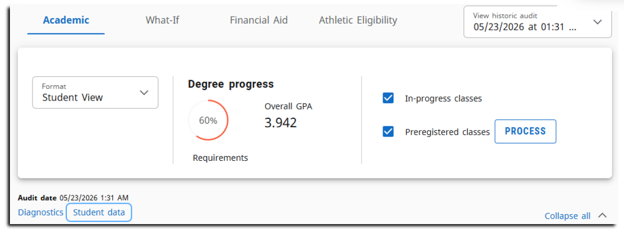
1. Access the Student data feature within the audit:
Use (CTRL F) to search and highlight the MATX attribute:
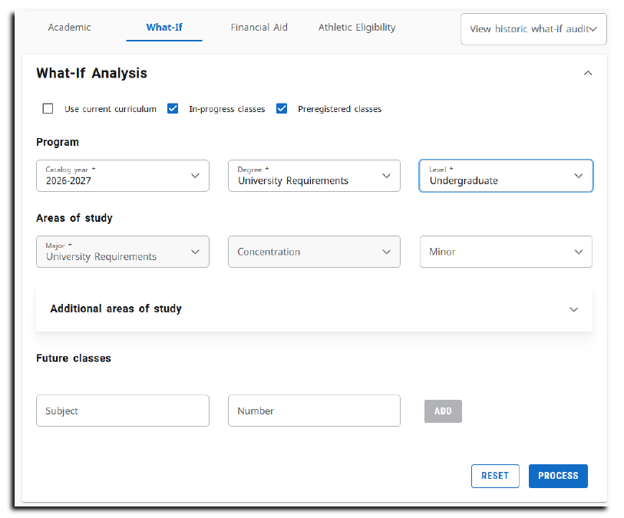
2. Access the What-If feature within the audit. Select the current catalog year, University Requirements for the degree and Undergraduate for the level:
Lower-division transfer courses that are equivalent to upper-division OSU courses will be displayed within the audit:
Class History & GPA Estimator
Class History shows a chronological list of the student’s coursework. You can access the tool by clicking the vertical ellipses (three dots) at the top right of the audit:
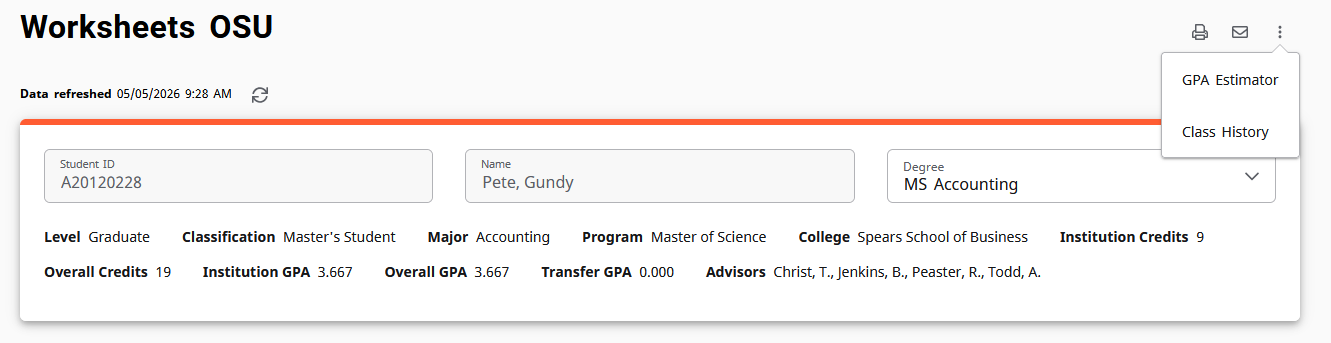
The GPA Estimator tool has three functionalities: a Graduation Estimator, a Term Estimator, and an Advice Estimator.
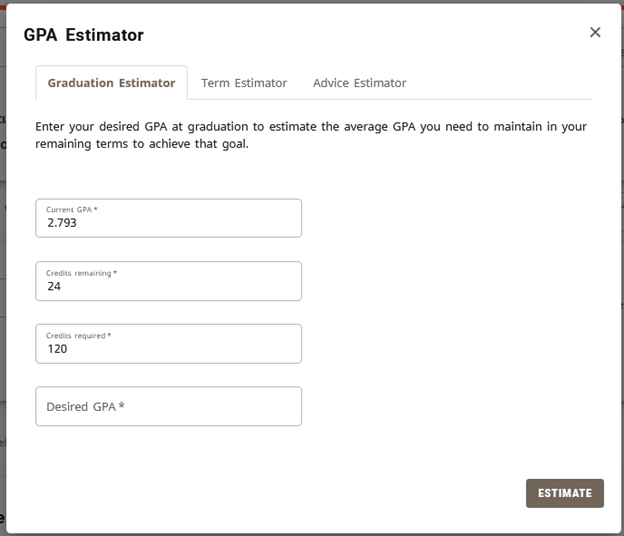
The Graduation Estimator gives the GPA needed across the remaining credits required for the degree to reach a desired total GPA. This tool populates the first three fields automatically: the current GPA, the number of credits still needed to complete the degree, and the total credits required by the degree. Entering the desired GPA and clicking Estimate will provide how many credits at certain grades are needed to achieve that GPA.
In the example below, the student currently has a GPA of 2.793, is in a degree that requires 120 credits, and still has 24 credits left until they complete their degree (note that this does not include credits from courses in Fall Through).
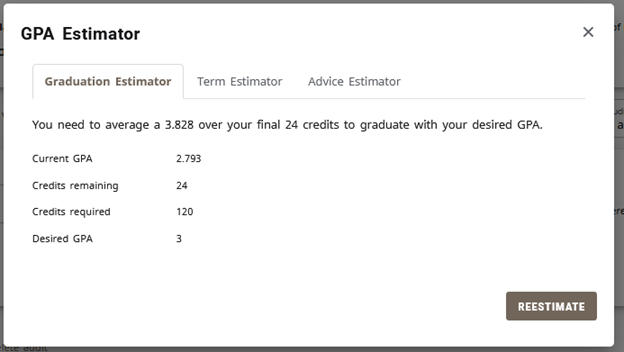
It a total GPA of 3.0 is desired, typing 3 into the Desired GPA field and clicking Estimate will provide the GPA needed over the remaining credits to reach the desired GPA.
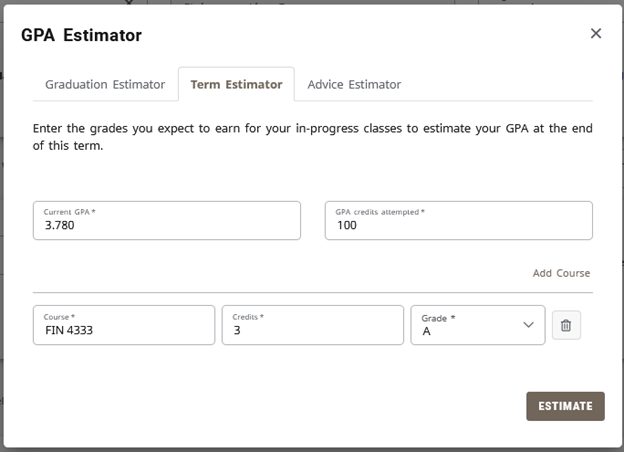
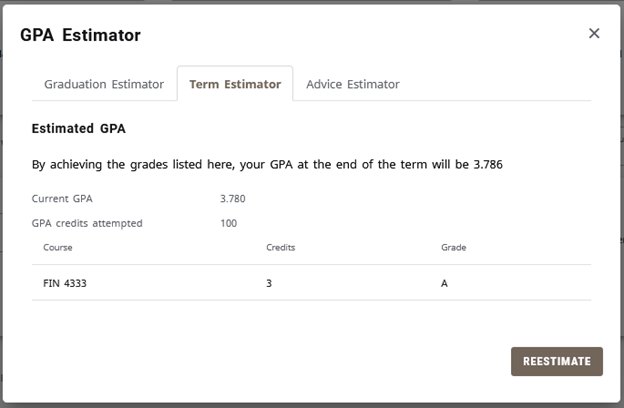
The Term Estimator can be used to see what the student’s GPA will be after the current semester is graded. All fields will automatically be filled, including the student’s current GPA, the credits they’ve completed so far, and the courses they are currently enrolled in. These courses will automatically have their grades set to A. In the example below, the student has a GPA of 3.780 from the 100 credits they’ve earned so far. They are enrolled in the 3 credit course FIN 4333, and the Estimator has automatically assigned an A in the course. After clicking Estimate, we see that their GPA will raise to 3.786 if they earn an A in that course.
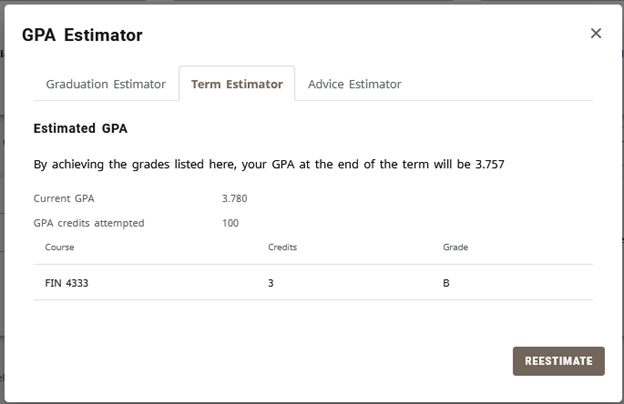
The grade can be changed based on what the student expects to earn in that course. For example, if the student thinks they’ll earn a B in FIN 4333, their GPA will be lowered to 3.757.
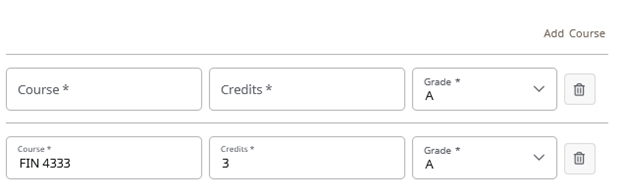
If the student plans on enrolling in additional courses for the current semester, they can select “Add Course” and enter the course information including their expected grade in that course.
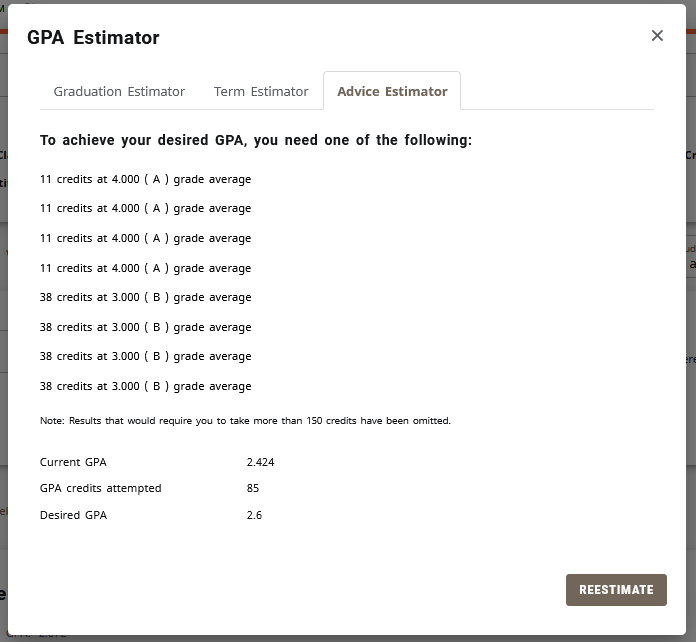
The Advice Estimator can be used to see how many credits are needed to get to a certain GPA (it differs from the Graduation Estimator in that it doesn’t limit itself to only the credits needed by the degree). The student’s current GPA and the credits they’ve completed so far are automatically populated. Entering the desired GPA and clicking Estimate will provide how many credits at certain grades are needed to achieve that GPA.
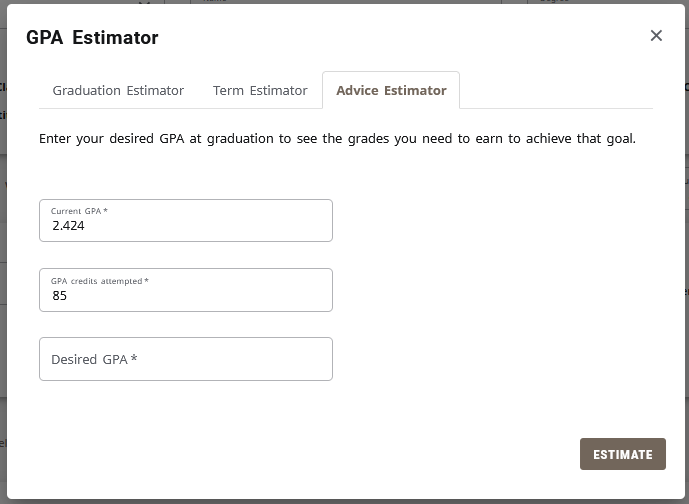
For example, the student in the screenshot above and below has a current GPA of 2.424 and 85 earned credits so far. If a desired GPA of 2.6 is input, the estimator shows that 11 credits with grades of A or 38 credits that average a grade of B are needed.
What-If & Look Ahead (Future Classes)
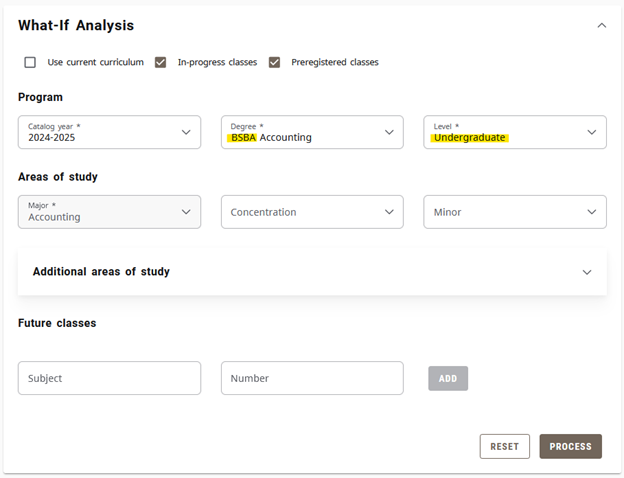
The order of fields in the What-If tool have been rearranged. When using the What-If, make sure that the Level selected matches the Degree (e.g., bachelor’s degrees will be undergraduate, master's degrees will be graduate, etc.).
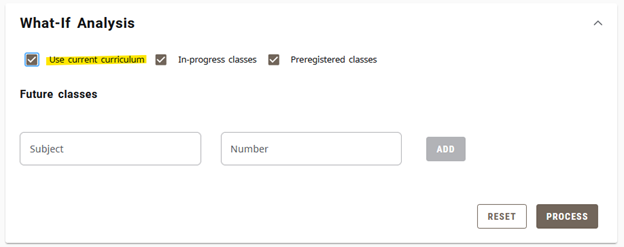
The What-If and Future Classes tools can be used together or independently. If just planning future classes, check the “Use current curriculum” box. This will collapse the Program and Additional Areas of Study fields so you can concentrate on adding the future coursework:
Graduation Application Requirement
The audit now has a block that indicates if a student has an active graduation application for the selected program. This block is at the bottom of an undergraduate audit and moves to the top when 90 credits towards the degree are earned (for graduate students, the block moves to the top when 70% of the degree’s credits are earned). The circle in this block will usually appear red (not complete).
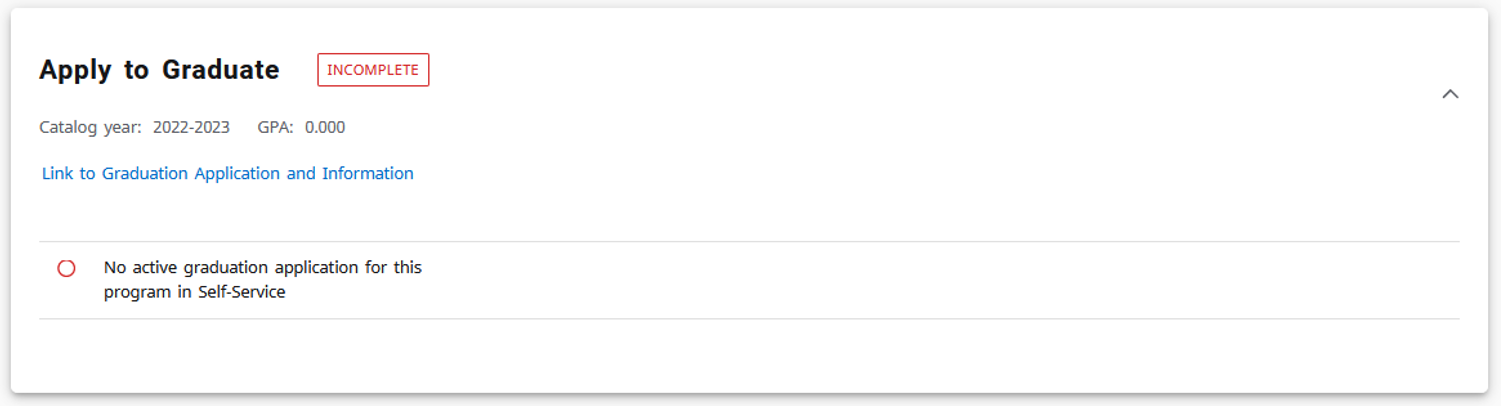
Once a student has submitted a graduation application in Self-Service for the program depicted in the audit, the circle will become green (complete).

The circle will only remain green for as long as the graduation application is active (graduation applications do not automatically roll to the next term if degree requirements are not met). For more information, click here.